






Read it, or write it,from a phone.
One TribeTale app for your readers and for you. Readers follow the newsletters they subscribe to; you write, schedule and publish from "Your newsletters", and hear when someone subscribes.

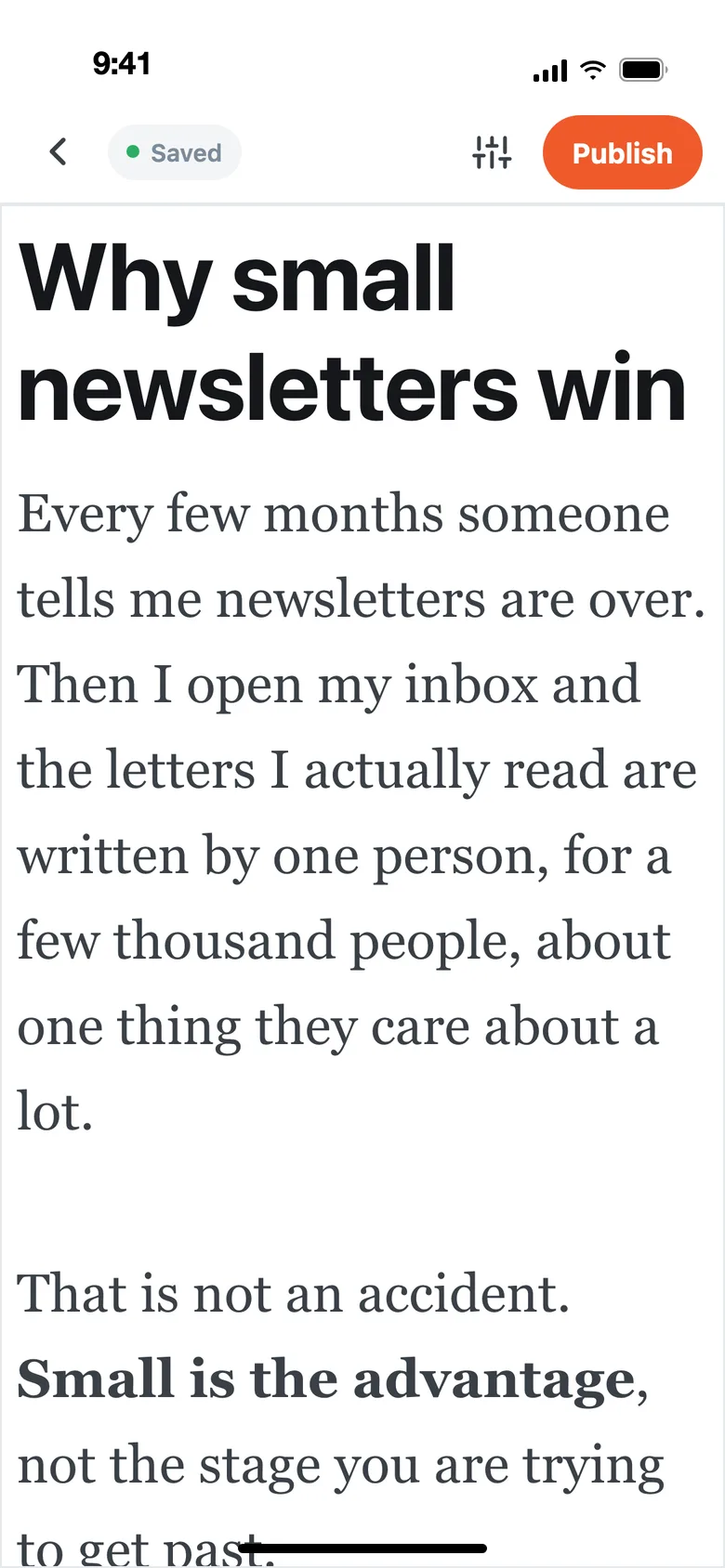



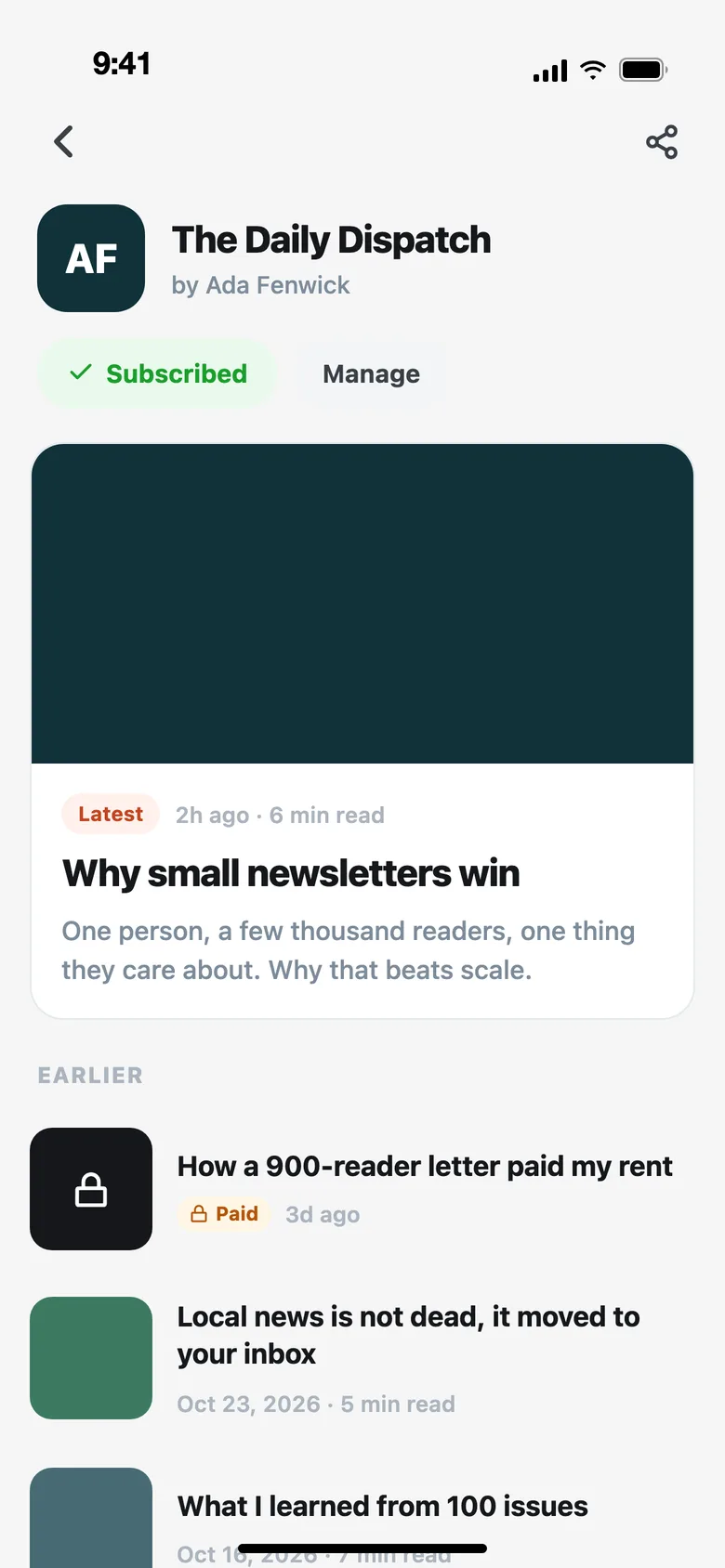
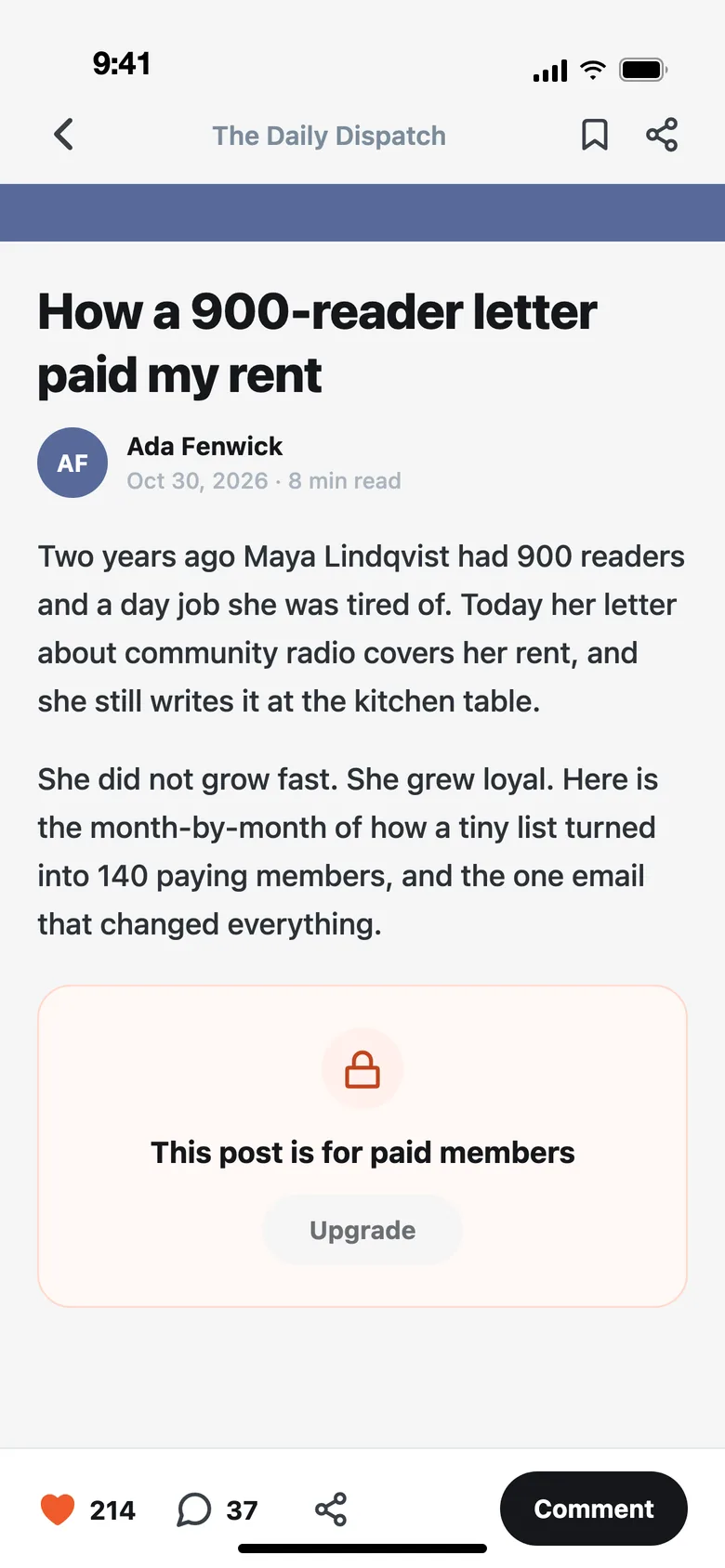
TribeTale has one mobile app, built for iOS and Android, that serves both sides. Readers sign in and read the newsletters they subscribe to, with paid posts locked to paid members. Writers open "Your newsletters" to draft in the same editor as the web dashboard, then publish now or schedule, and get a push notification for each new free or paid subscriber.
One app,for both sides of the newsletter.
A single app where the same person can read the newsletters they follow and run the ones they write, without switching apps or accounts.
Settings also holds the theme, "Light", "Dark" or "System", and "Your account" shows your email status and when you joined.
Fixes and small changes ship over the air, so they reach phones without waiting on a store review.


- 01
Sign in
Use your email and password, "Email me a sign-in link", "Continue with Google" or "Continue with Microsoft". On iPhone there is also "Sign in with Apple".
- 02
Land on Home
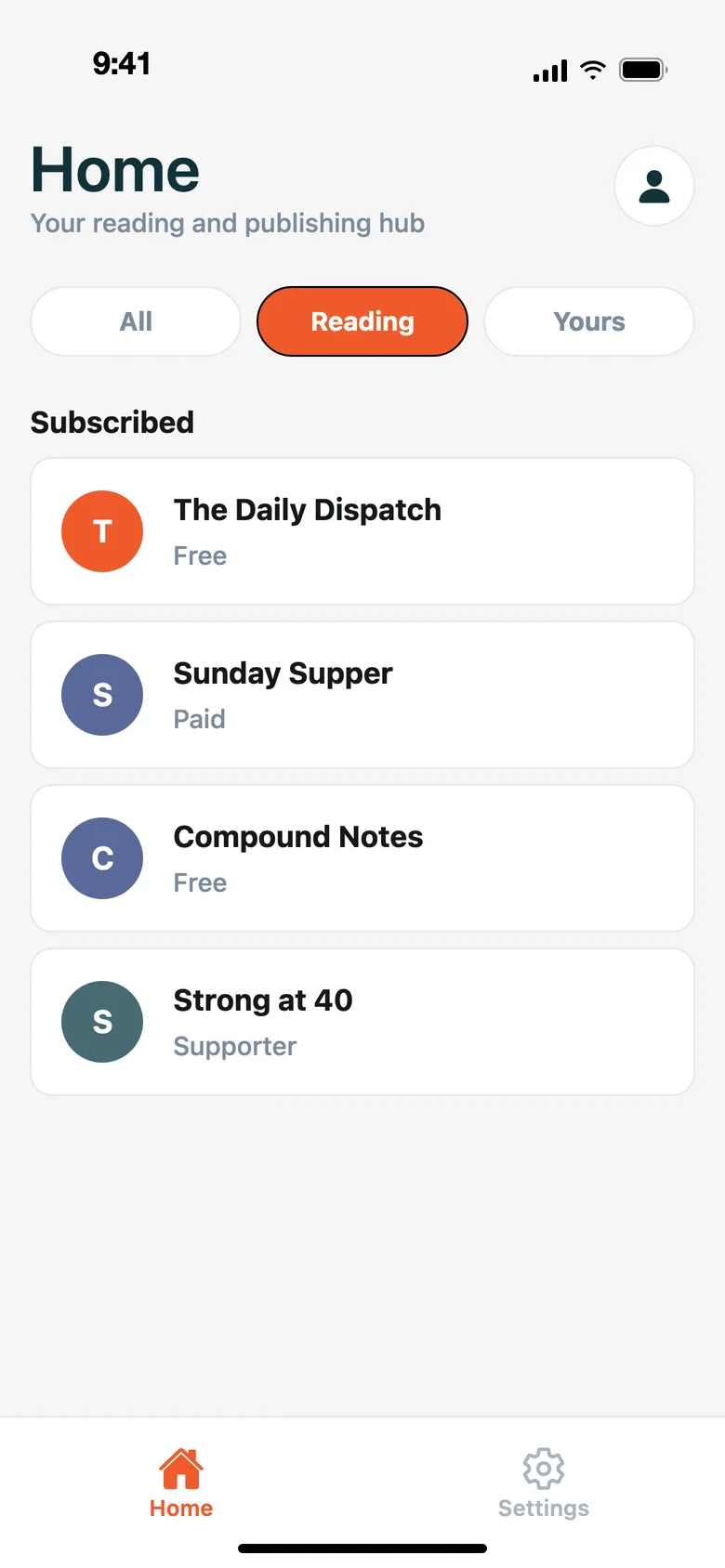
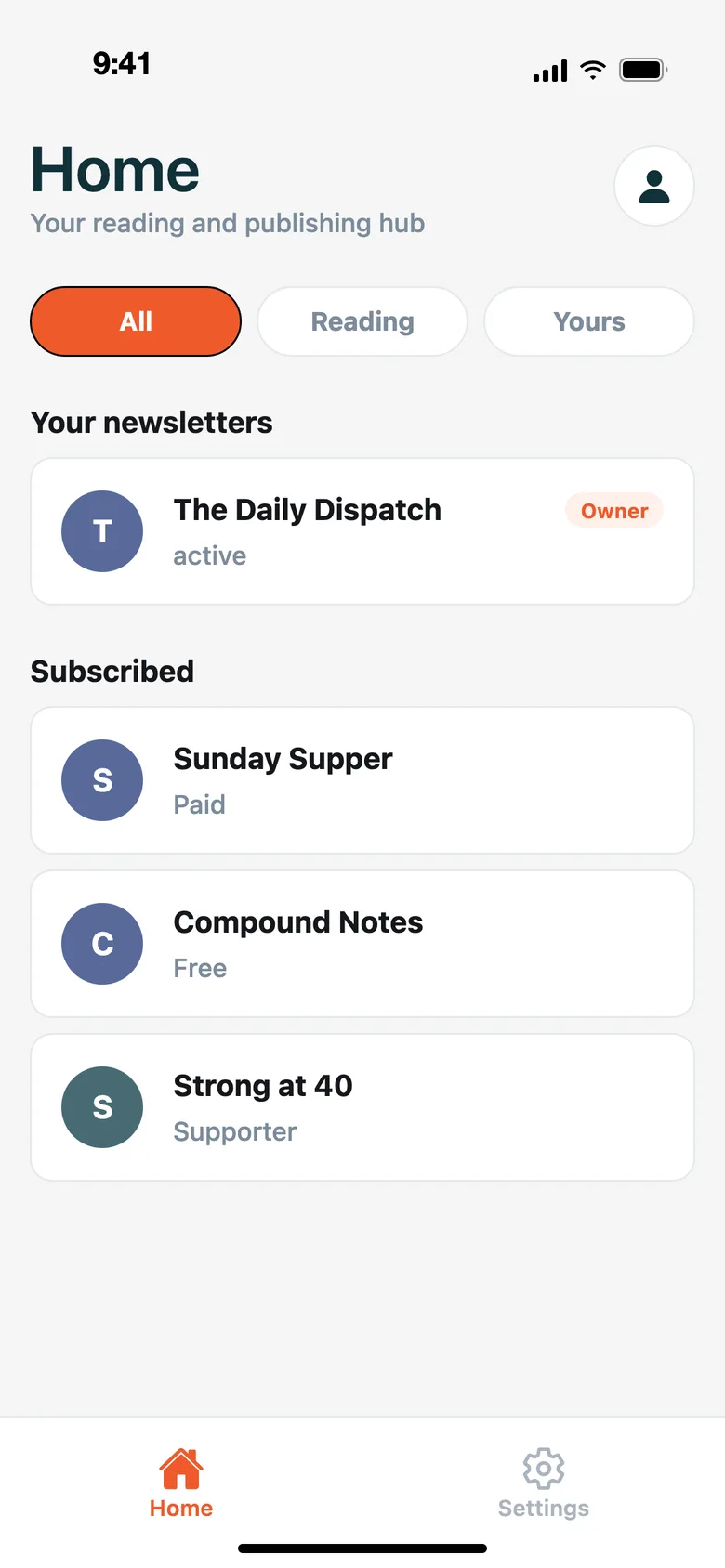
The app has two tabs, Home and Settings. Home shows everything you read and everything you write.
- 03
Filter what you see
Chips at the top of Home switch between "All", "Reading" (newsletters you subscribe to) and "Yours" (newsletters you write for).
- 04
Lock it
Turn on "Face ID sign-in" in Settings and the app asks for Face ID before it opens.
- TribeTale is pre-launch, and so is the app. It is built for iOS and Android but is not yet listed in the App Store or Google Play.
Your readers getyour newsletter in their pocket.
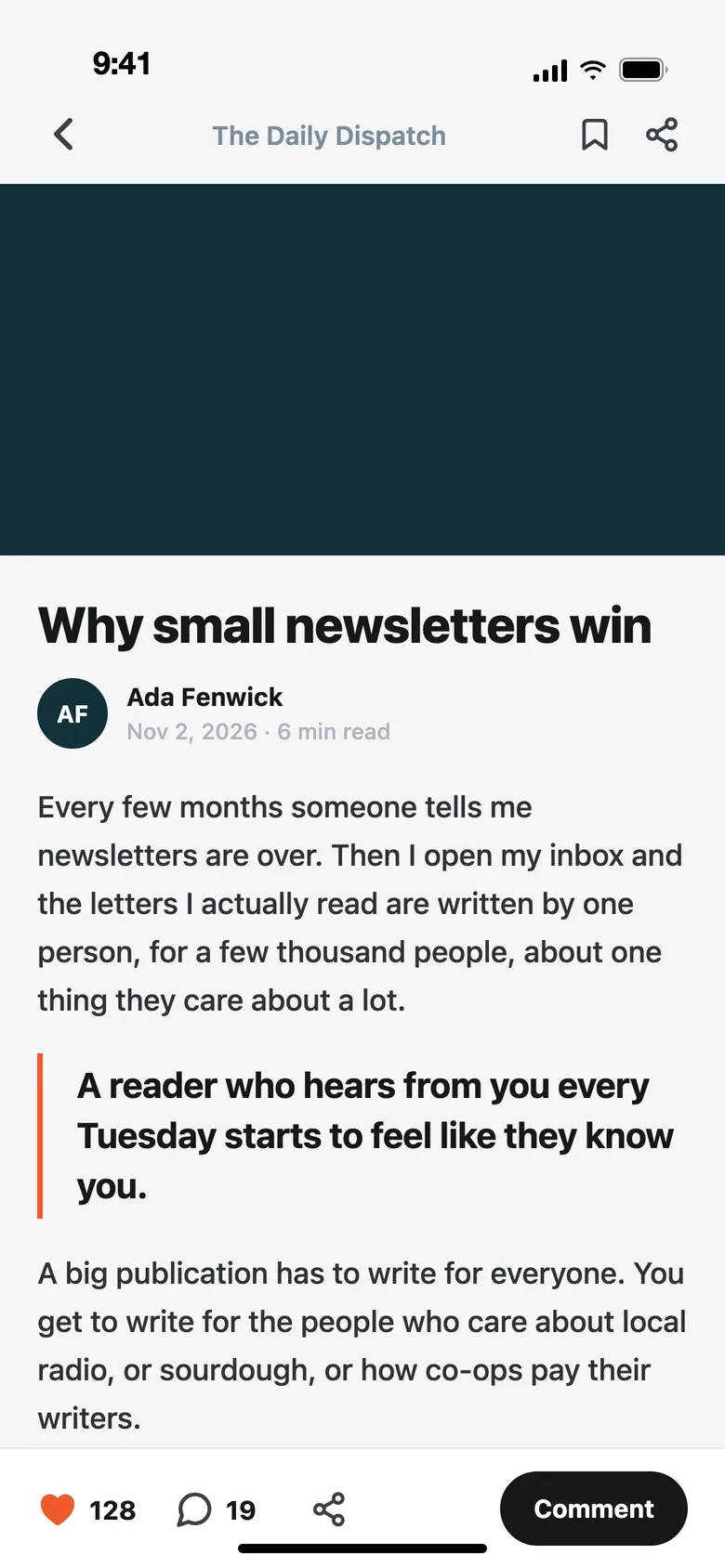
Readers see the newsletters they subscribe to, open the latest issue or the archive, and read posts laid out for a phone.
Readers become paid members on your site, through your own Stripe account, the same way they would from an email. The app then shows them the full post.
At the bottom of a newsletter, readers who want to write see "Love writing? Start your own."
- 01
Sign in with their email
A reader enters their email address and gets a sign-in link. No password to set.
- 02
Find their subscriptions
Under "Reading", each newsletter they follow is listed with their membership, free, paid or the tier name.
- 03
Open a newsletter
The newest post sits at the top marked "Latest", with earlier posts below it.
- 04
Read the post
Free posts read in full. On a paid post, a reader without access sees the opening and then "This post is for paid members".
- The app shows the newsletters a reader already subscribes to. It is not a discovery network; Substack's reader app is genuinely better at putting new publications in front of people.
- Commenting from the app is not switched on yet. Readers comment on your site.
- Audio versions play on your site. The app has no audio player yet.
Write, schedule and publishwithout opening a laptop.
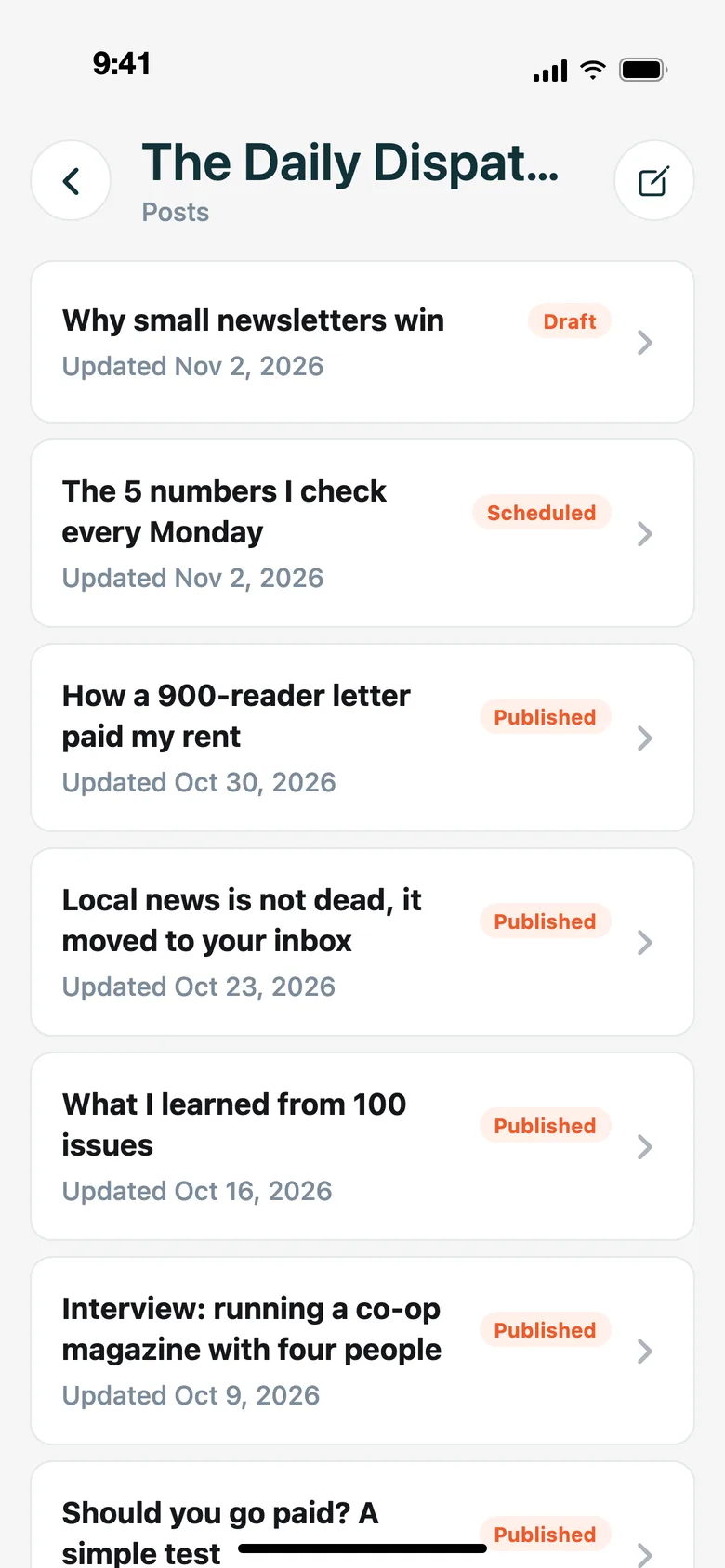
Behind "Your newsletters" you get the same block editor as the web dashboard, a post settings sheet, and a publish sheet that sends the email.
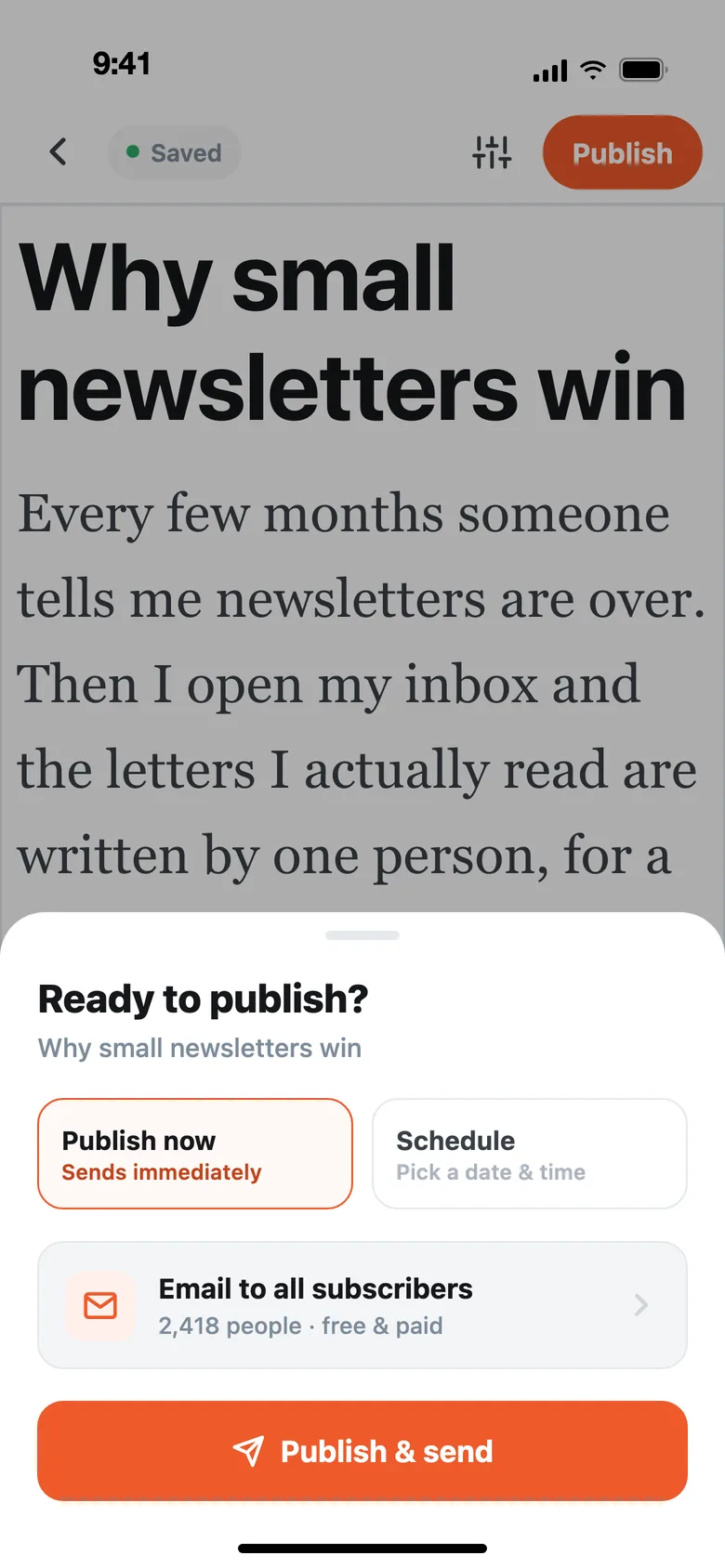
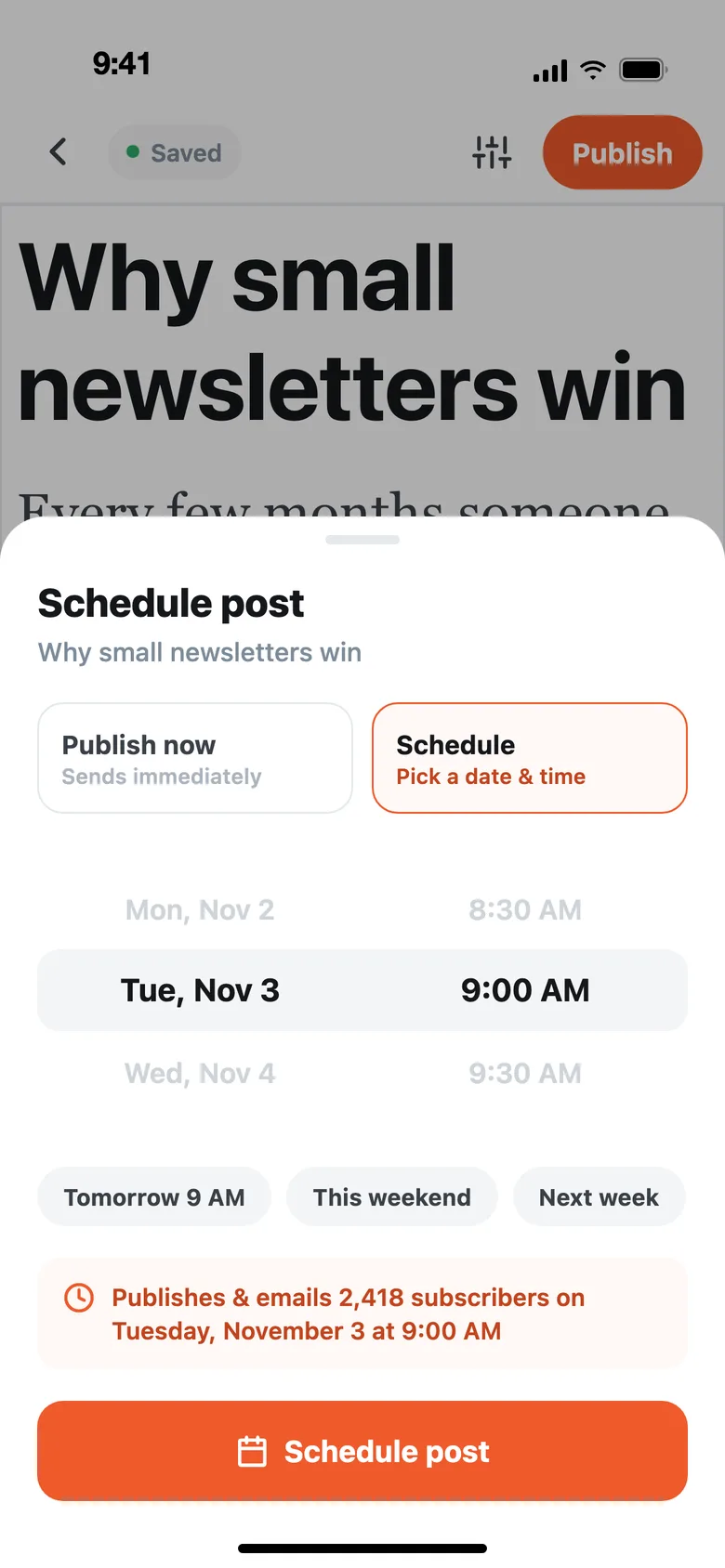
The sheet shows who the email goes to before you confirm: "Email to all subscribers", with the count of free and paid people. When scheduling, it spells out the result, for example that the post publishes and emails your subscribers on a given date.
A draft you no longer want can go from post settings with "Delete post".
- 01
Pick a newsletter
"Your newsletters" lists every publication you write for, each marked "Owner" or "Editor". Open one to see "Newsletter posts" and press "New post".
- 02
Write
Draft in the editor. Start on the phone and finish on a laptop, or the other way round; it is the same post.
- 03
Set the details
"Post settings" covers "Post URL", "Publish date", "Tags", "Post access" ("Public", "Members only" or "Paid members"), "Excerpt", "Authors" and "Feature this post".
- 04
Publish or schedule
Press "Publish" and the sheet asks "Ready to publish?". "Publish now" sends immediately with "Publish & send". "Schedule" lets you pick a date and time, or tap "Tomorrow 9 AM", "This weekend" or "Next week", then "Schedule post".
- Publishing from the phone sends the email to all subscribers, free and paid. To publish on the site only, email only, or send to one segment, use the publish flow on the web.
- "Post history", "Code injection", "SEO & meta data" and "Social cards" appear in the phone's post settings but open on the web for now.
Hear about new subscriberswhen they arrive.
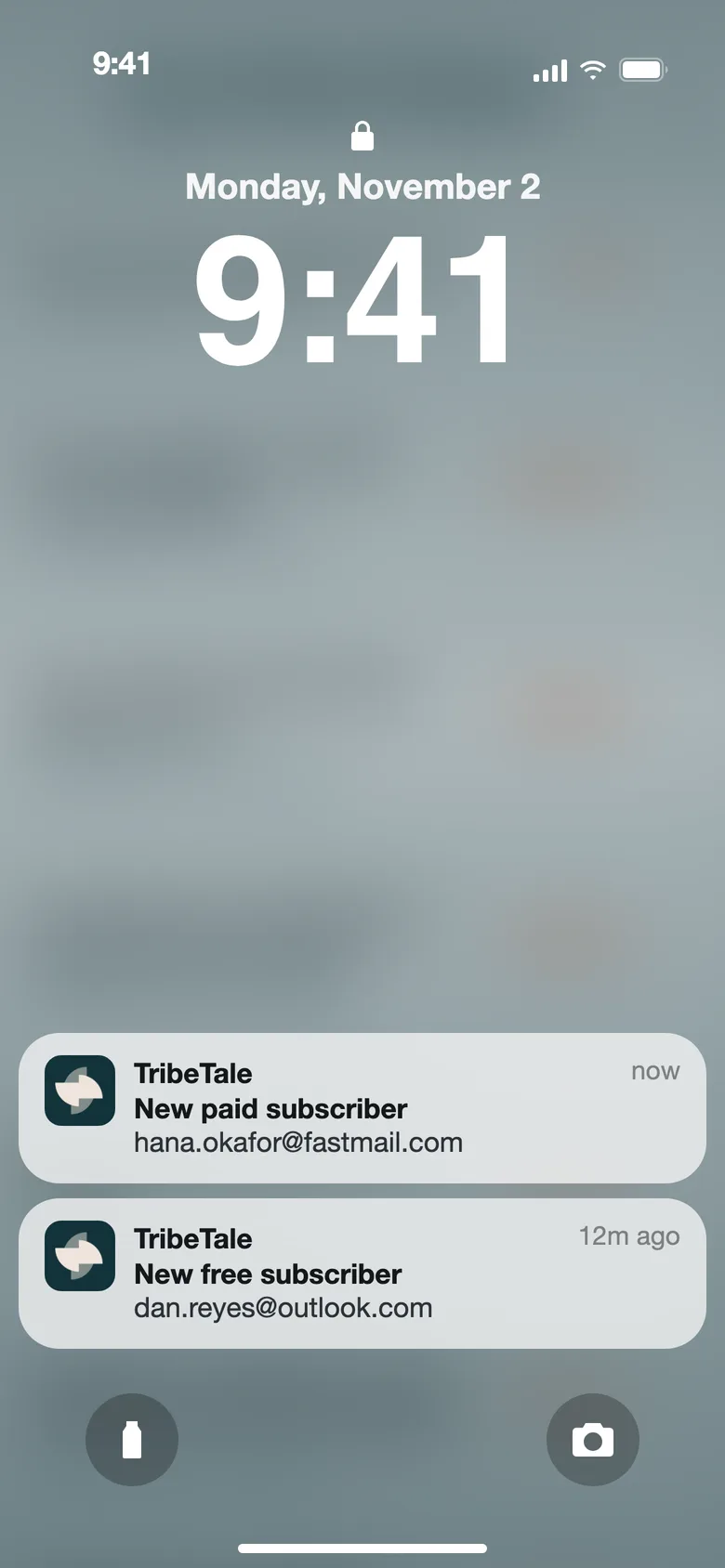
The app sends you a push notification when someone subscribes to a newsletter you own, marked free or paid.
Alerts go to every phone you are signed in on, and a phone you have removed the app from stops receiving them.
- 01
Allow notifications
Accept the phone's notification prompt after you sign in, so the app can register this device.
- 02
Get the alert
A new member arrives as "New free subscriber" or "New paid subscriber", with their email address. A complimentary member counts as paid.
- 03
Choose what you hear
Under Notifications in Settings are switches for "New free subscriber", "New paid subscriber" and "New comments & replies".
- Comment alerts have a switch but are not sent yet. New comments still reach you by email.
- The switches do not yet remember your choice between sessions.
- Readers do not get a push for each new post yet; they get your email as usual.
Questionsanswered plainly.
Is the app in the App Store and Google Play?
Do my readers need a different app from me?
Can I write and publish a whole issue on my phone?
Can I publish from the phone without sending the email?
Can my team use it?
Does the app play the audio version of a post?
How do readers pay for a subscription?
The rest of itone page per job.
Your tribe. Your tale.Your terms.
Join the waitlist. Bring your list over when we open, and keep every cent your readers pay you.